Appearance
History
The History view is the main dashboard — a live feed of all incoming notifications.
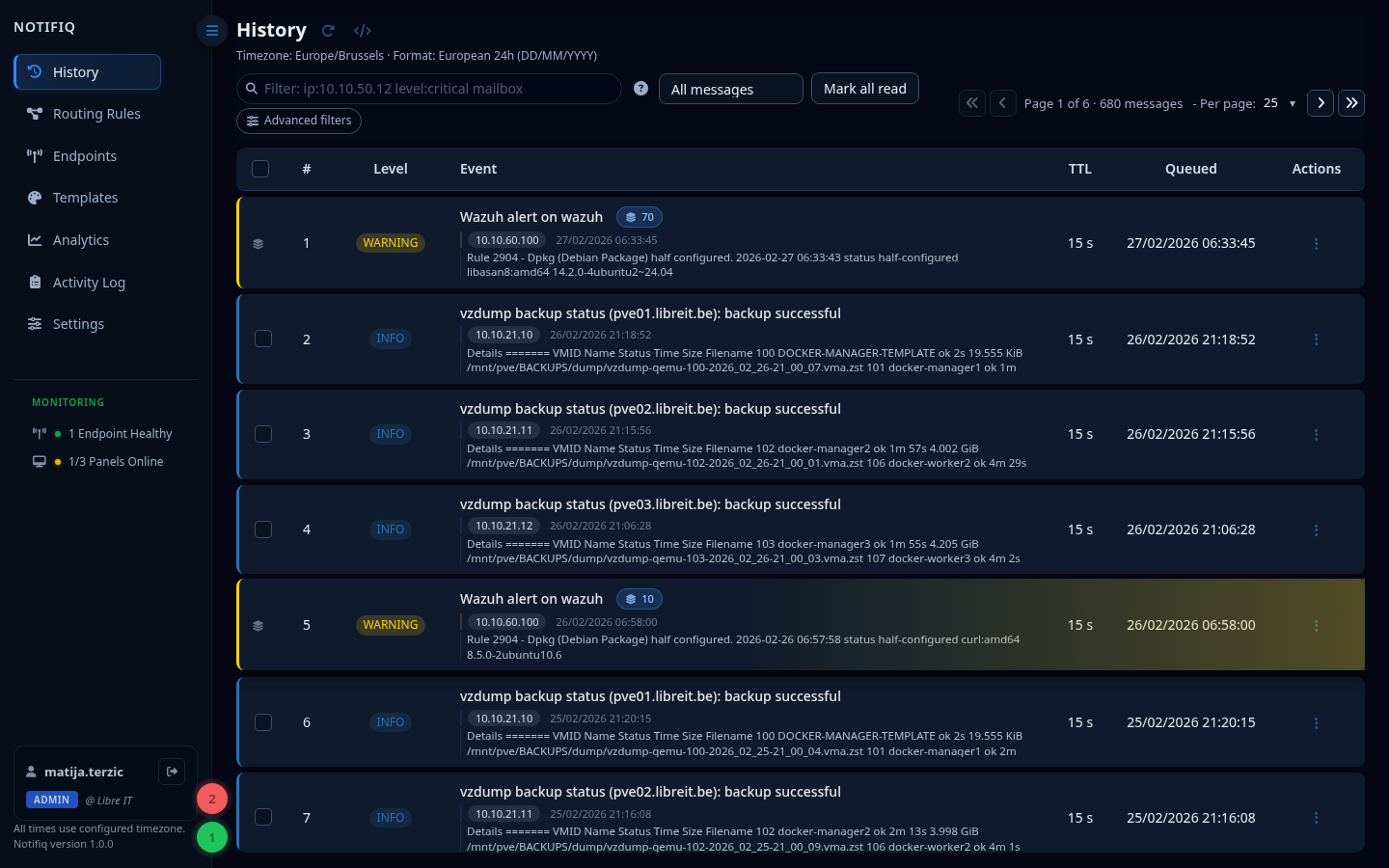
Message feed
Notifications appear in real time as they arrive. Each card shows:
- Level indicator (color-coded)
- Title and message preview
- Source IP (auto-detected connection IP), and — if sent — the
ipandhostfields from the notify payload - TTL (For Panels)
- Timestamp
- Actions Menu
Click a card to open the full message detail.
Actions menu
Every message card has an actions menu (the ⋮ button). The available options depend on whether the message is standalone or part of a group.
Single message
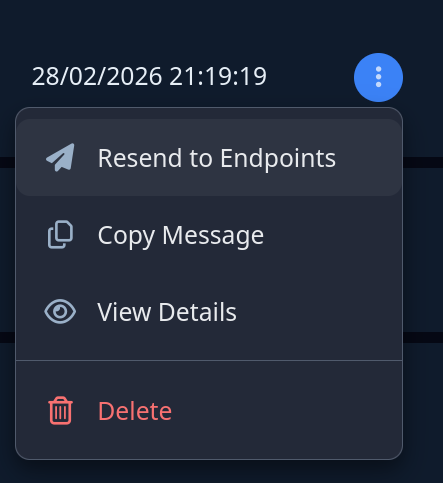
| Action | Description |
|---|---|
| Resend to Endpoints | Re-deliver this message to any endpoint |
| Copy Message | Copy the message text to clipboard |
| View Details | Open the full message detail overlay |
| Delete | Permanently remove this message |
Grouped message
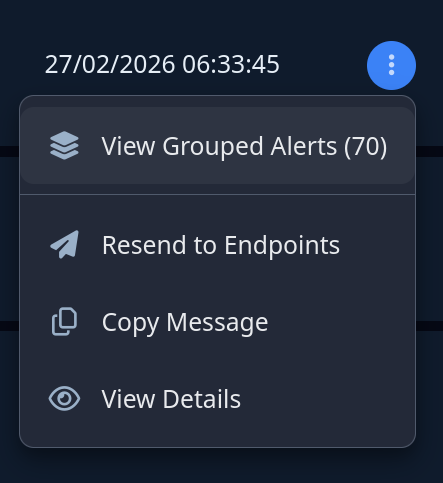
When a message belongs to a group, an additional option appears at the top:
| Action | Description |
|---|---|
| View Grouped Alerts (n) | Open the Grouped Alerts modal showing all messages in the group |
| Resend to Endpoints | Re-deliver this message to any endpoint |
| Copy Message | Copy the message text to clipboard |
| View Details | Open the full message detail overlay |
TIP
Grouped messages do not show a Delete option in the actions menu — use the Grouped Alerts modal to delete individual messages or the entire group.
Resend to Endpoints
The Resend to Endpoints dialog lets you re-deliver any message to one or more endpoints, regardless of the original routing rules.
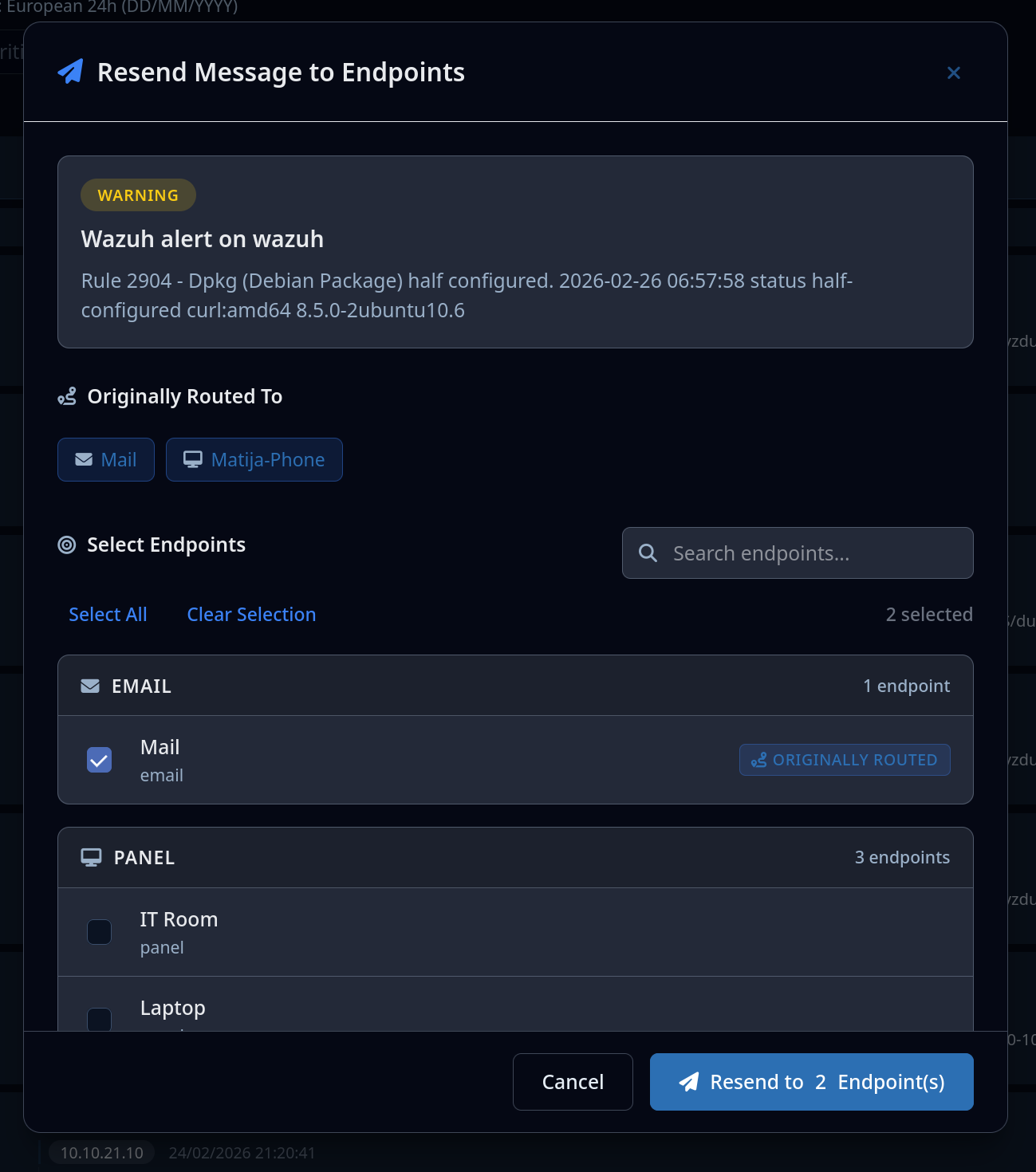
The dialog shows:
- The message being resent (level, title, body)
- Originally Routed To — the endpoints the message was delivered to when it first arrived
- Select Endpoints — searchable list of all available endpoints, grouped by type (Email, Panel, Telegram, etc.)
Select any combination of endpoints and click Resend to N Endpoint(s) to deliver.
Filters
Filter the feed by:
- Level — success, info, warning, error, critical
- Source IP — the auto-detected connection IP of the system that sent the notification
- IP — the sender-supplied
ipfield from the notify payload (useful when Notifiq sits behind a proxy/NAT and the connection IP doesn't reflect the real origin) - Host — the sender-supplied
hostfield from the notify payload - Search — full-text search across title and message body
Advanced search also supports typed queries, e.g. source_ip:203.0.113.9, ip:10.0.5.22, host:db-prod-01, level:critical.
Message grouping
Notifiq can automatically group similar repeated alerts (e.g. the same host going down repeatedly). Grouped messages are collapsed into a single card with a repeat count badge.
Configure grouping rules in Settings → Notifications.
Grouped Alerts modal
Click View Grouped Alerts (n) in the actions menu to open the full list of messages in the group.
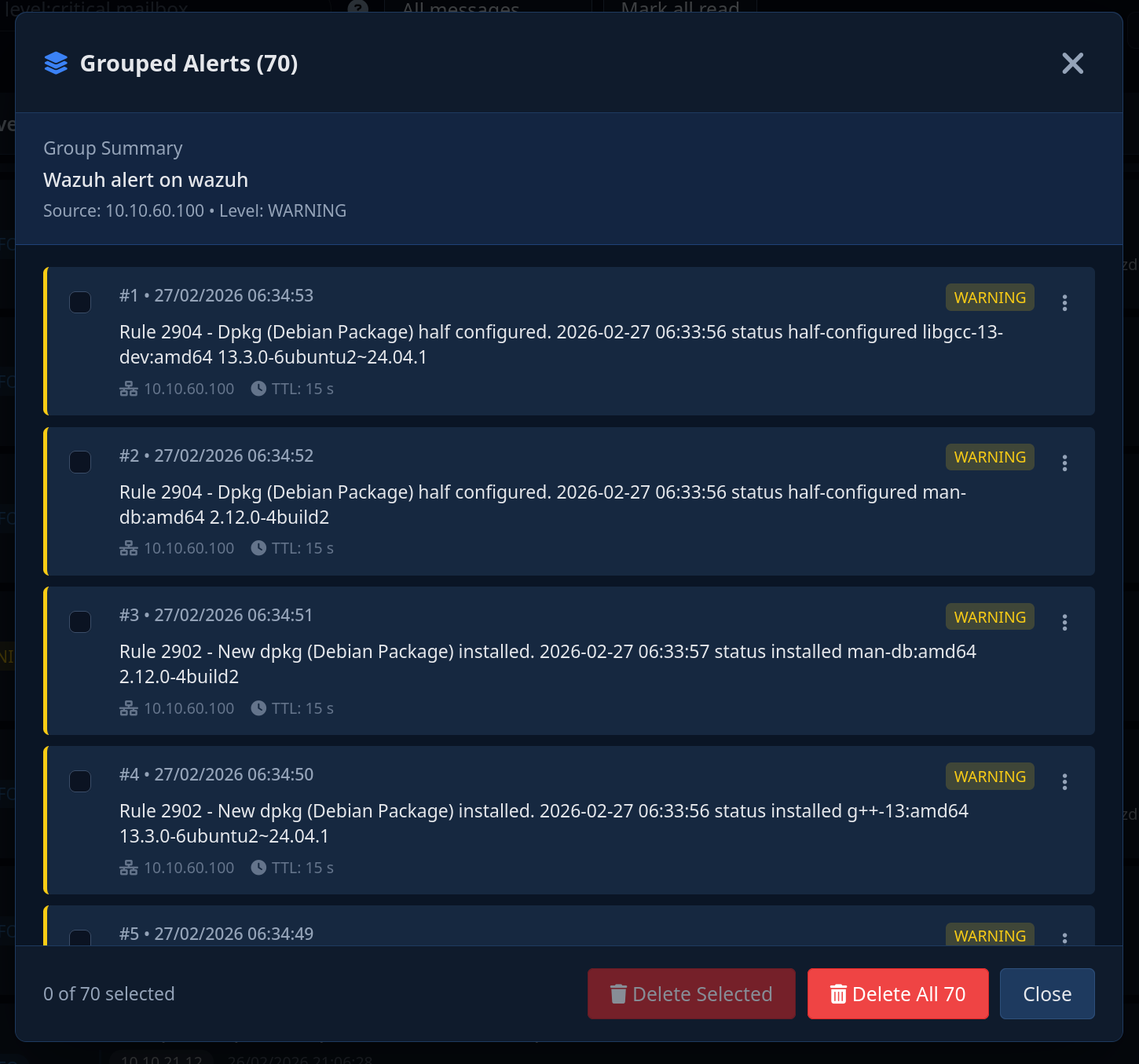
The modal shows:
- A Group Summary header with the shared title, source, and level
- Each individual message in the group with its own timestamp, level badge, and actions menu
- A checkbox per message for bulk selection
- Delete Selected and Delete All buttons in the footer
TTL and auto-dismissal
Messages have an optional ttl field (milliseconds). On panel displays, messages are automatically dismissed after the TTL expires (in alert mode). In History, all messages are kept regardless of TTL until the retention policy removes them.
Retention
Old messages are automatically deleted based on the retention period configured in Settings → General. Default is 90 days.