Appearance
Tenant Management
Super Admin only
The Tenants view is only accessible to the Super Admin account. Regular tenant users do not see this section.
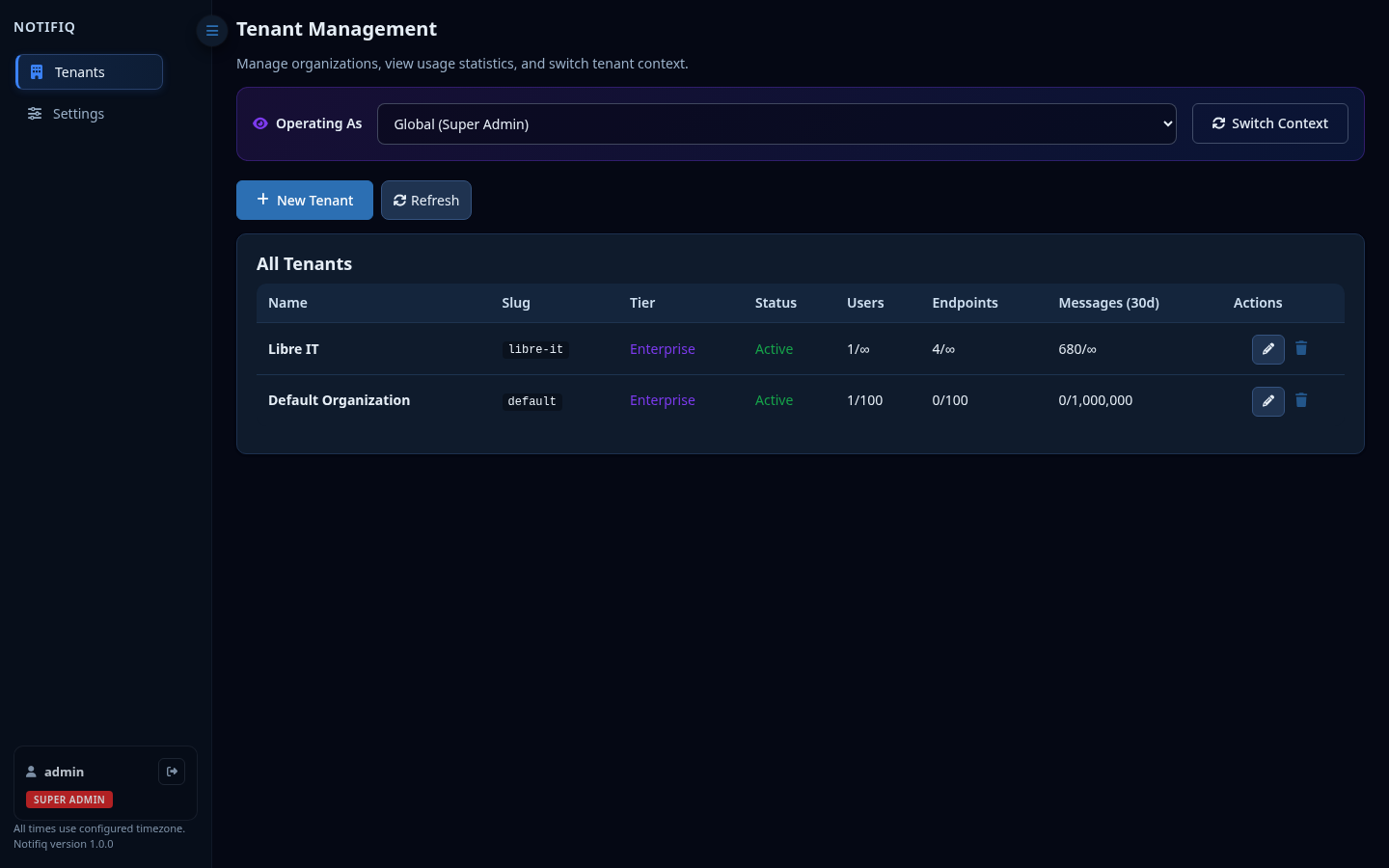
Overview
The Tenants view is the central control panel for the Super Admin. It shows every organization running on the platform, their current usage, and their assigned tier.
Operating context
At the top of the page is an Operating As dropdown. By default the Super Admin operates in Global mode (platform-wide view). Use Switch Context to impersonate a specific tenant — this loads that tenant's full dashboard, including their History, Routing Rules, Endpoints, Templates, and Settings, exactly as a tenant admin would see them.
Switch back to Global (Super Admin) at any time using the same control.
Tenant table
| Column | Description |
|---|---|
| Name | Display name of the organization |
| Slug | URL-safe identifier used internally (e.g. libre-it) |
| Tier | Assigned subscription tier — Free, Starter, Pro, or Enterprise |
| Status | Active or Suspended |
| Users | Current users / limit (∞ = unlimited) |
| Endpoints | Current endpoints / limit |
| Messages (30d) | Messages sent in the last 30 days / monthly limit |
Tier limits
| Tier | Users | Endpoints | Messages / month |
|---|---|---|---|
| Free | 5 | 10 | 10,000 |
| Starter | 10 | 25 | 50,000 |
| Pro | 50 | 100 | 500,000 |
| Enterprise | ∞ | ∞ | ∞ |
Creating a tenant
Click + New Tenant to open the creation modal. You will be asked for:
- Name — the organization's display name
- Slug — a short URL-safe identifier (auto-generated from name, editable)
- Tier — the subscription tier, which sets the resource limits automatically
- Admin username and email — credentials for the first admin user of the new tenant
On creation, Notifiq bootstraps the tenant with an isolated data namespace and the specified admin account.
Editing a tenant
Click the pencil icon on any row to edit the tenant's name, slug, tier, or status. Changing the tier updates the resource limits immediately.
Set the status to Suspended to block all logins and API access for that tenant without deleting their data.
Deleting a tenant
Click the trash icon to permanently delete a tenant and all associated data (users, endpoints, messages, routing rules). This action cannot be undone.
Super Admin settings
The Super Admin has access to a Settings view limited to account security. It contains a single tab:
- Change password — update the Super Admin account password
- Two-Factor Authentication (2FA) — enable or disable TOTP-based 2FA for the Super Admin account
No other settings tabs (General, Notifications, Users, API Tokens) are shown when operating as Super Admin in global context, as those belong to individual tenants.